> For the complete documentation index, see [llms.txt](https://docs.kuasa.io/llms.txt). Markdown versions of documentation pages are available by appending `.md` to page URLs; this page is available as [Markdown](https://docs.kuasa.io/generate-leads/setup-and-edit-lead-form.md).
# Setup and Edit Lead Form
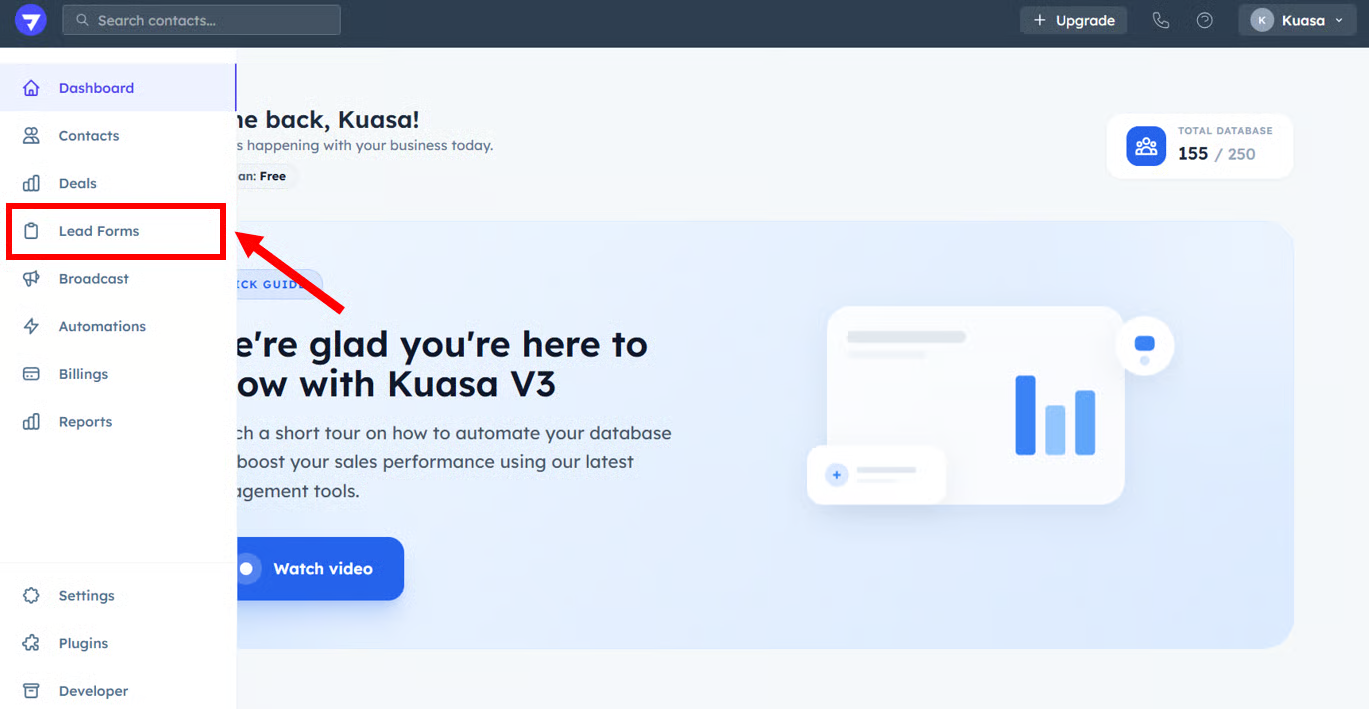
1. Click **Lead Forms**.
2. Click the **Edit** button at the right side under the **Action** part.
3. Setup all the parts below:
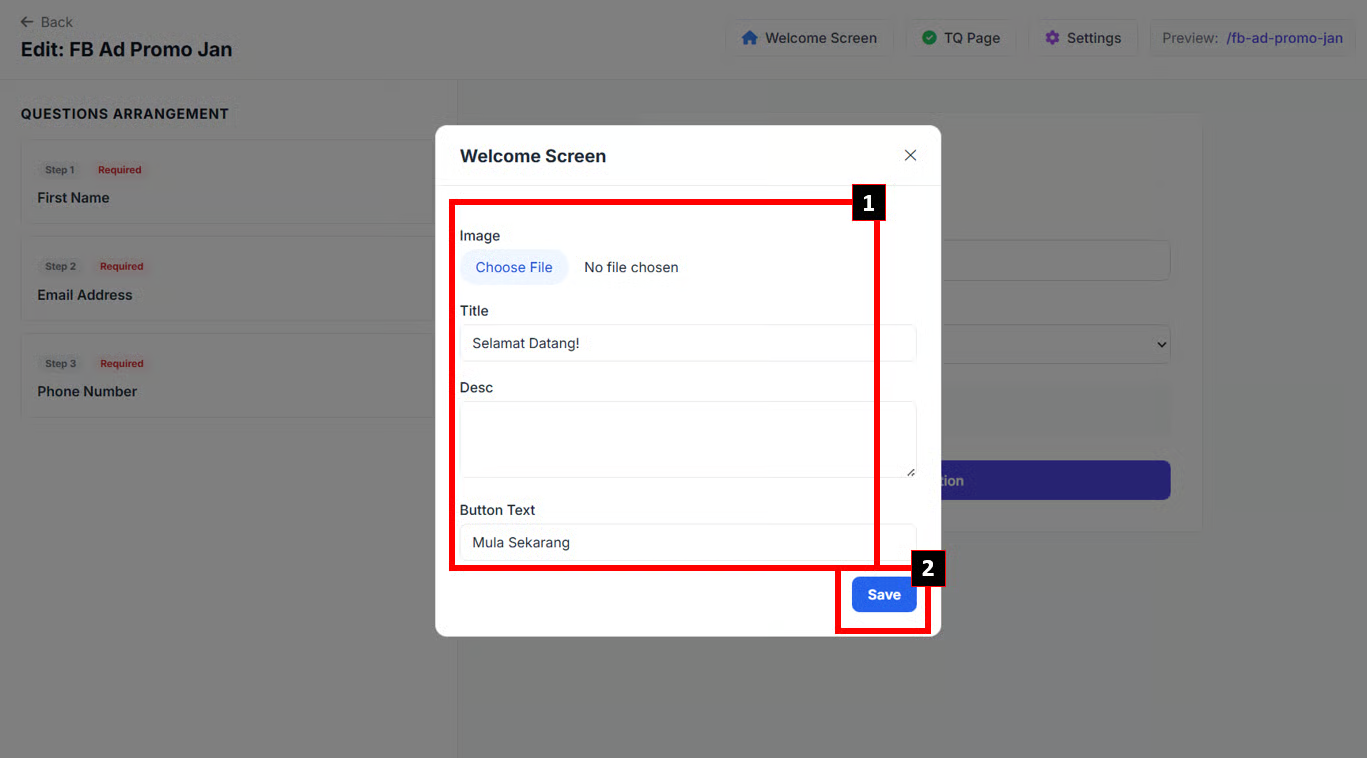
i. Welcome Screen
1. You may setup the details below:
**Image**: You can add an image for the Lead Form poster
**Title**: Fill your Lead Form title
**Desc**: Write your Lead Form description
**Button Text**: Put the label for the **Start Button**
2. Click **Save** button.
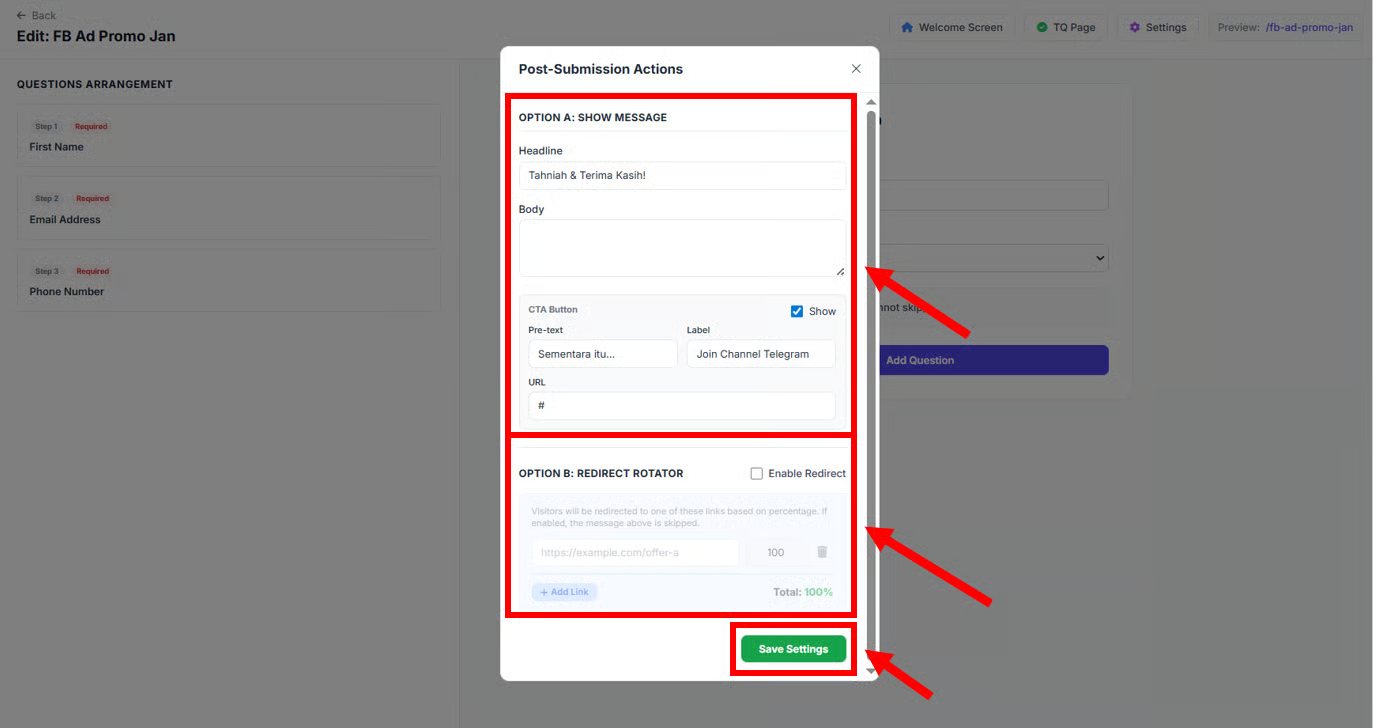
#### ii. TQ Page
1. You may setup the details below:
**Headline**: Put the Headline for your Thank you page.
**Body**: Write the sentence for your Thank you page.
**CTA Button** (Optional): You can add the CTA Button in the Thank You page.
**Redirect Rotator** (Optional): You can setup the redirect page after the Thank You page and set the percentage for each redirect link.
2. After done set all the details, click **Save Settings**.
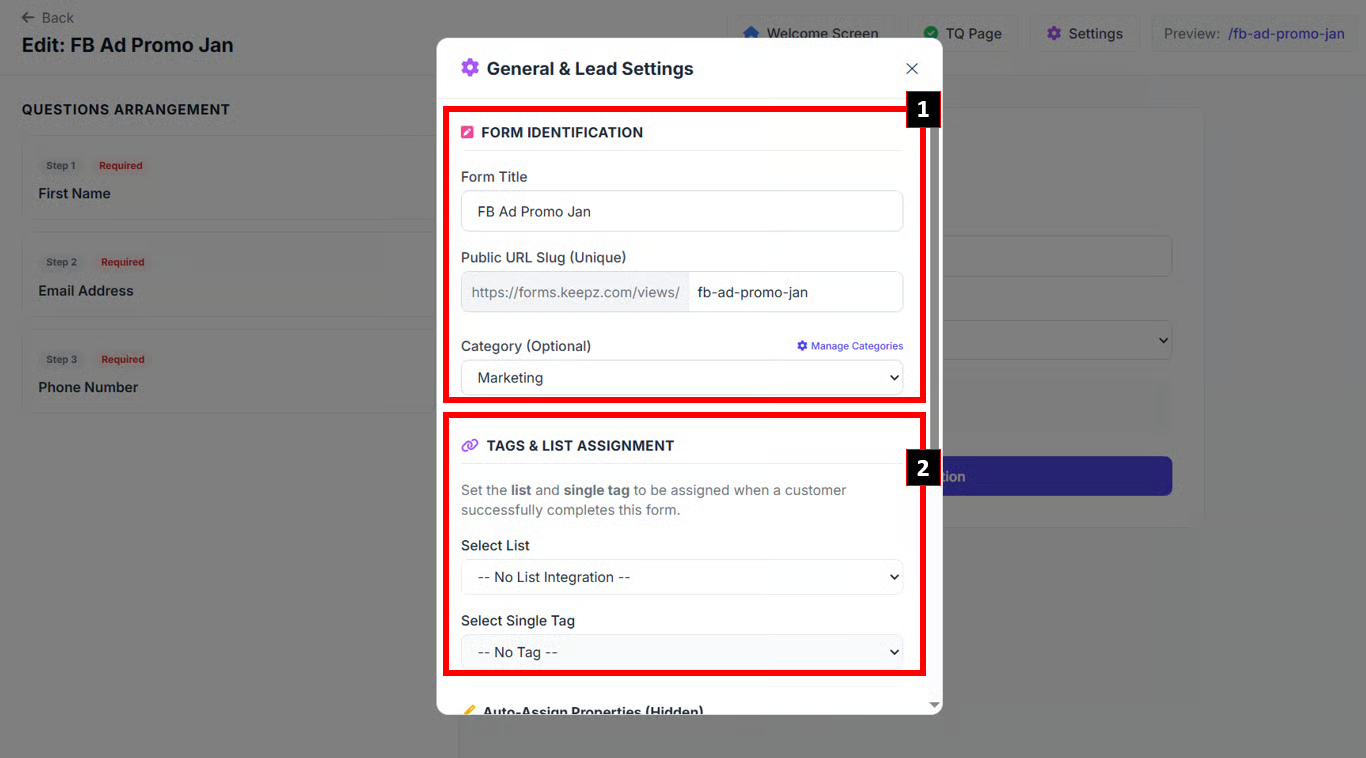
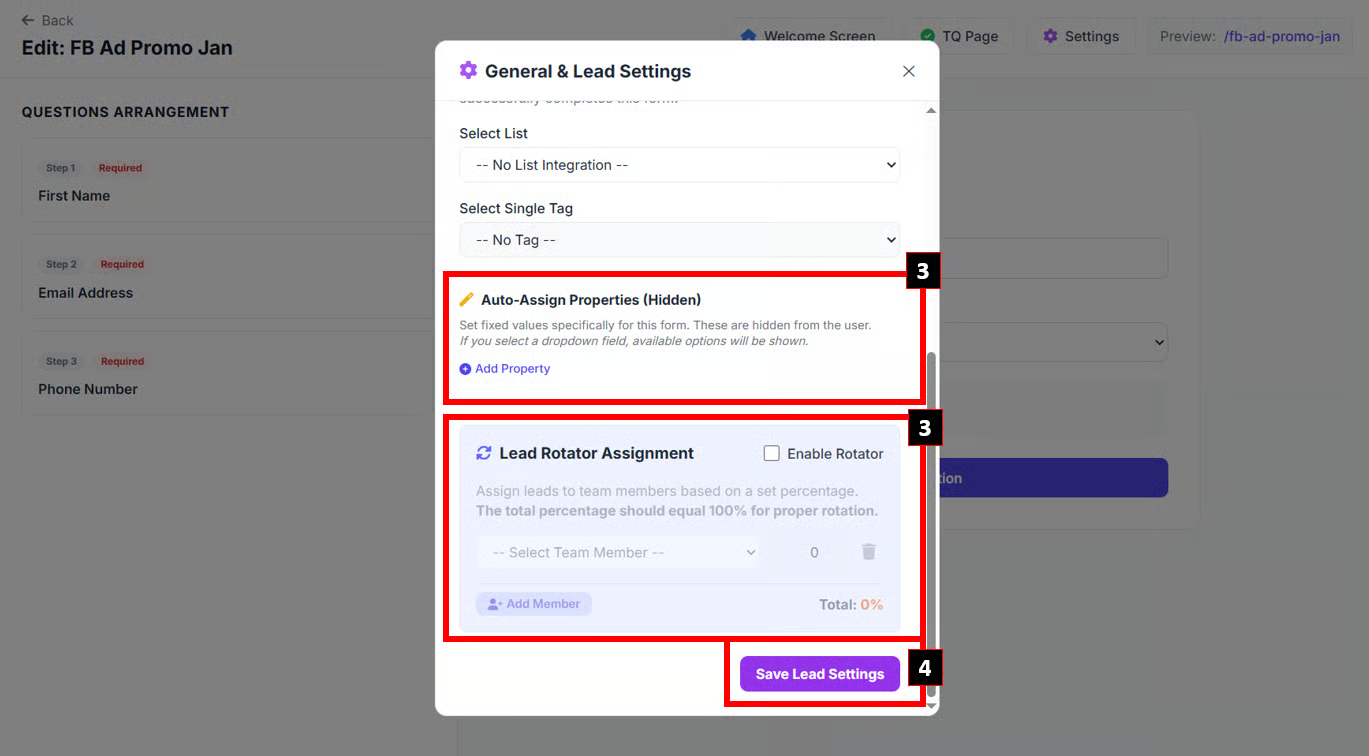
#### iii. Settings
1. You can setup the General & Lead Settings:
**Form Identification**: You can edit the **Form title**, **Public URL Slug**, and the **Category** of the Lead Form.
**Tags & List Assignment**: Set your Tags & List for the Lead Form.
**Auto-Assign Properties** (Optional): You can set any hidden properties for the lead that submit the Lead Form.
**Lead Rotator Assignment** (Optional): You can set the lead to rotate among your team member and set the percentage for each team member.
2. After done set all the details, click **Save Lead Settings**.
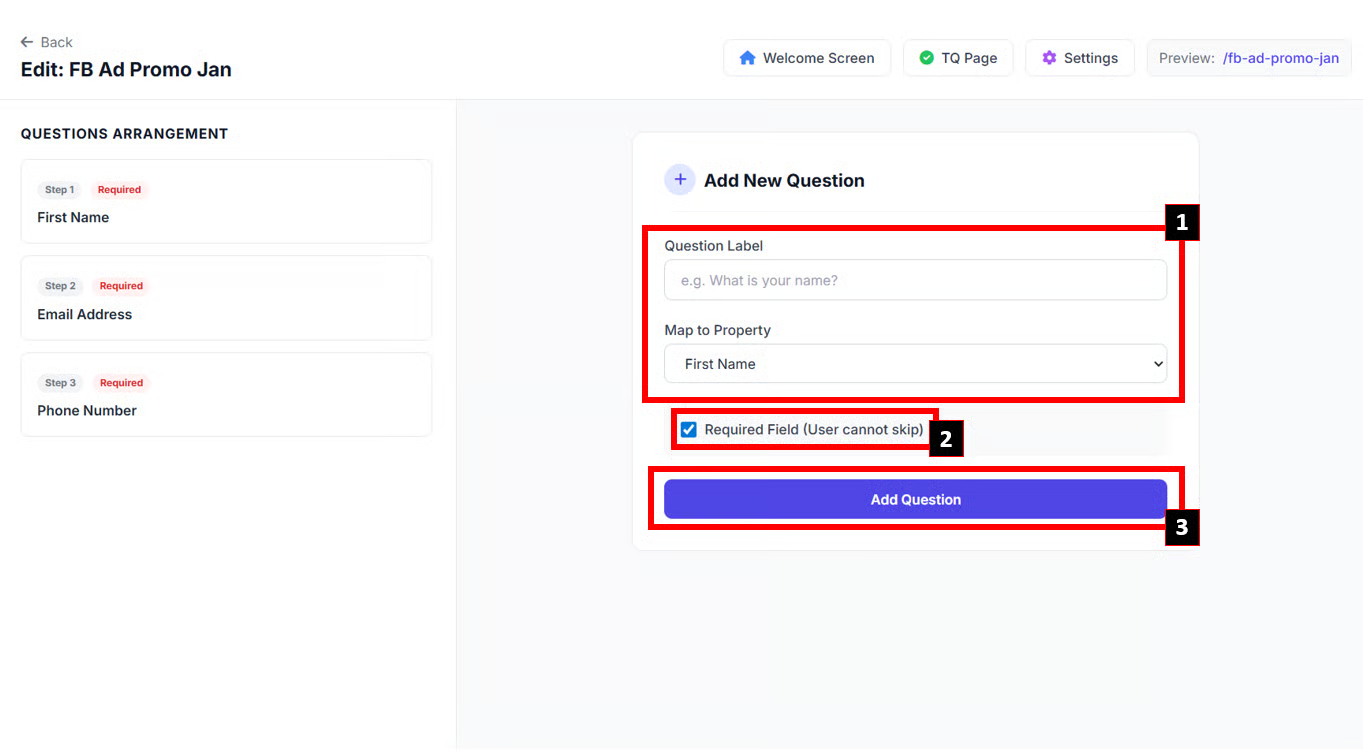
#### iv. Add New Question
1. You can add the question for the Lead Form by add the **Label** and the **Property**.
2. You can tick/untick the Required Field.
3. Click **Add Question** button.
{% hint style="success" %}
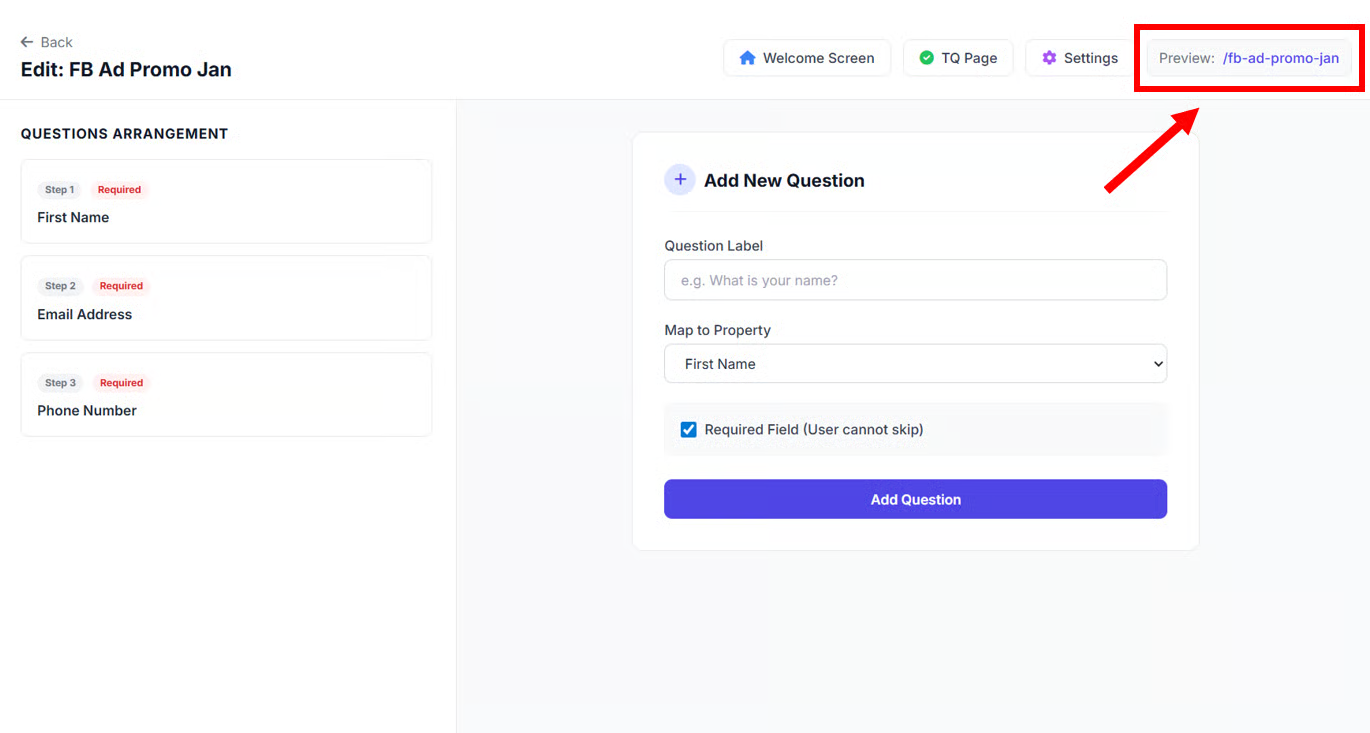
After done setup all the details, you can preview the Lead Form by clicking the link at the Preview part.
{% endhint %}