> For the complete documentation index, see [llms.txt](https://docs.kuasa.io/llms.txt). Markdown versions of documentation pages are available by appending `.md` to page URLs; this page is available as [Markdown](https://docs.kuasa.io/generate-leads/setup-your-automation.md).
# Setup Your Automation
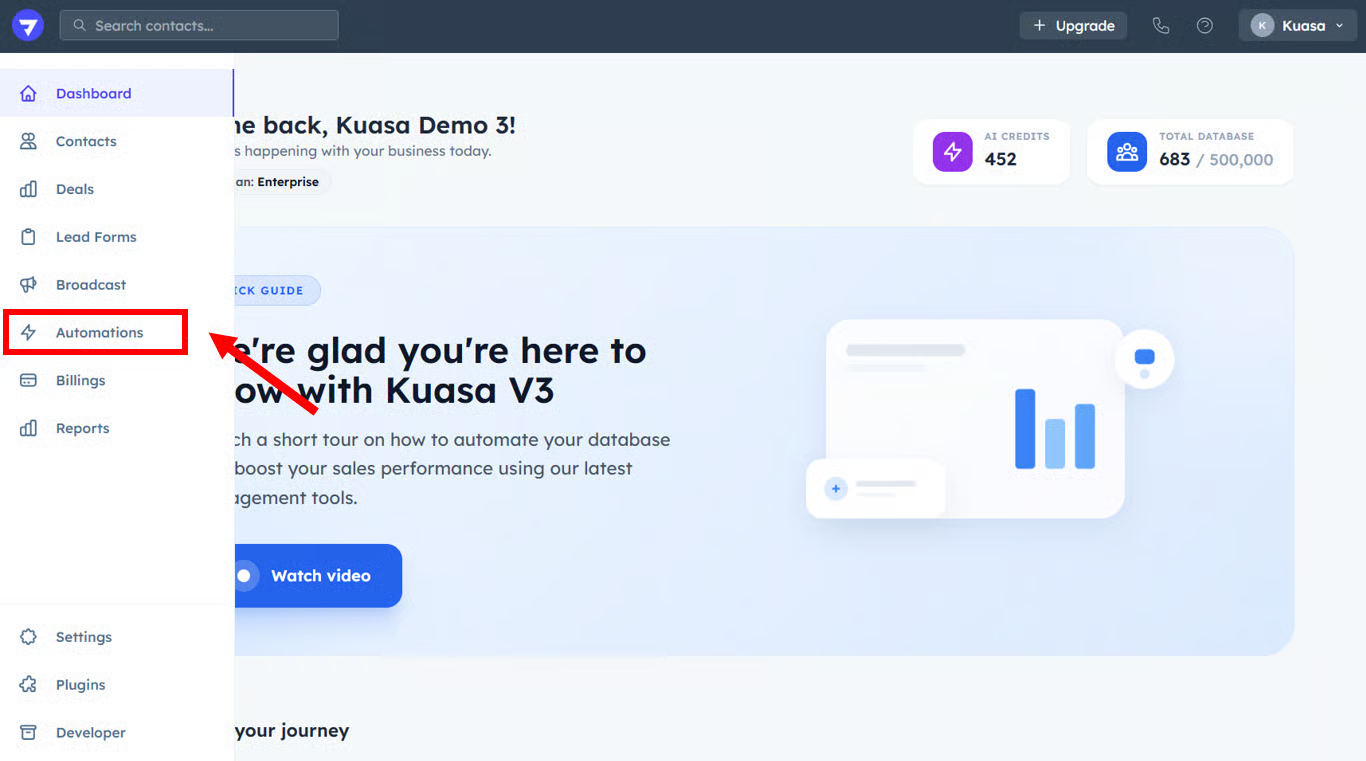
1. Go to **Automations**.
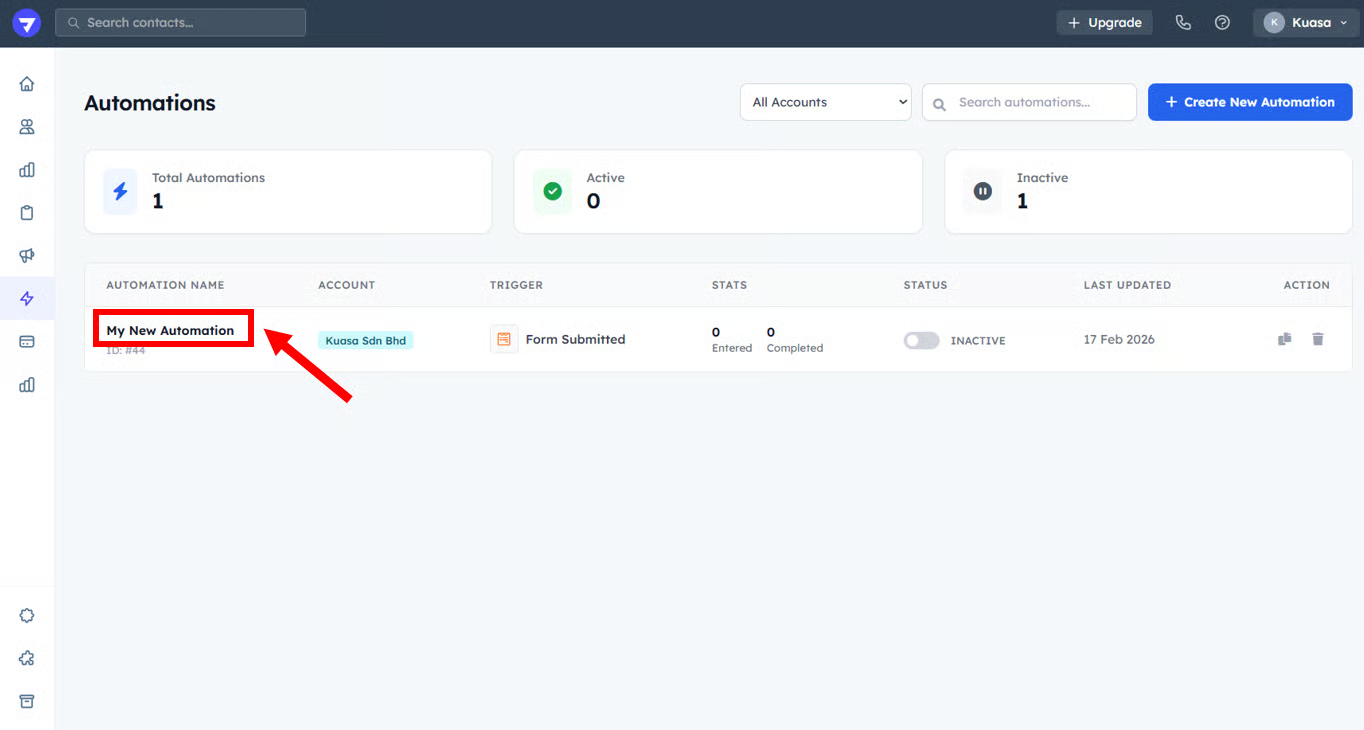
2. Click the automation name to open the automation setup page.
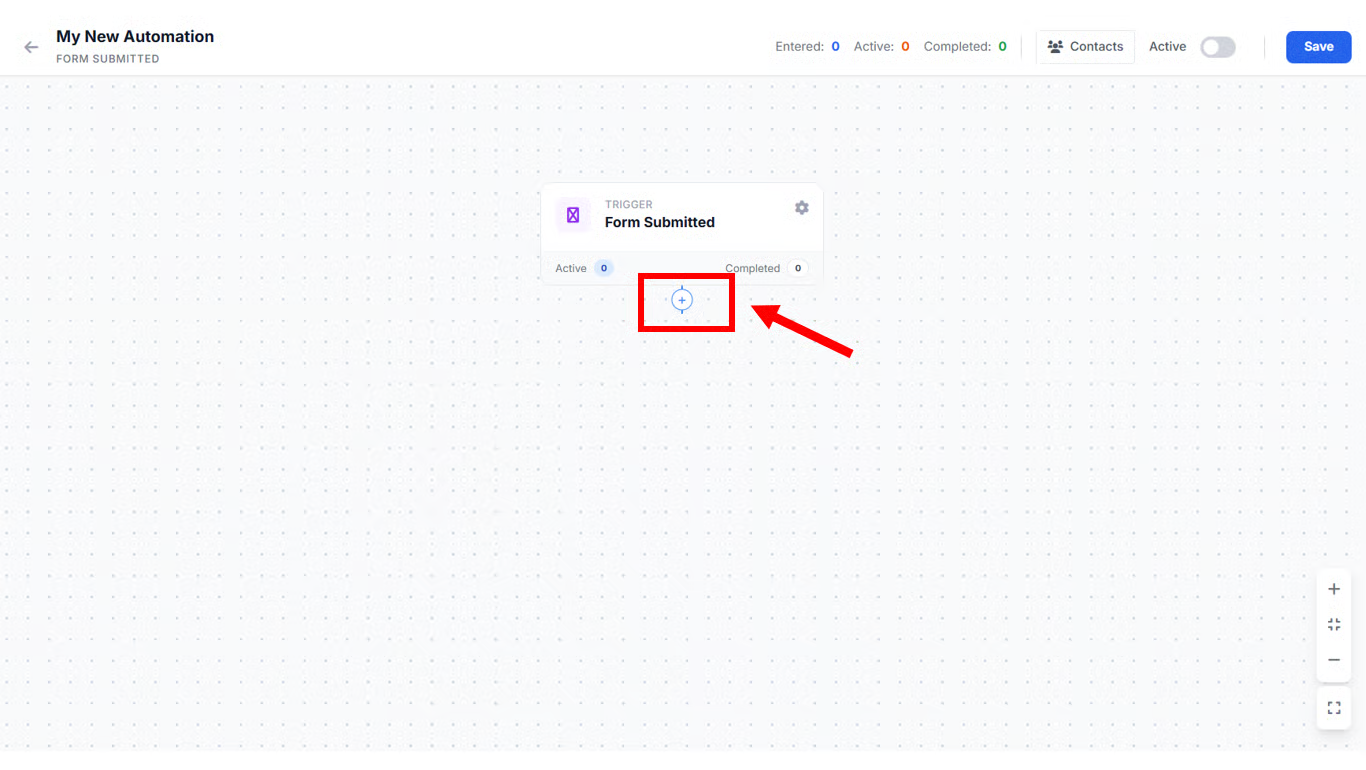
3. Click the **+ button**.
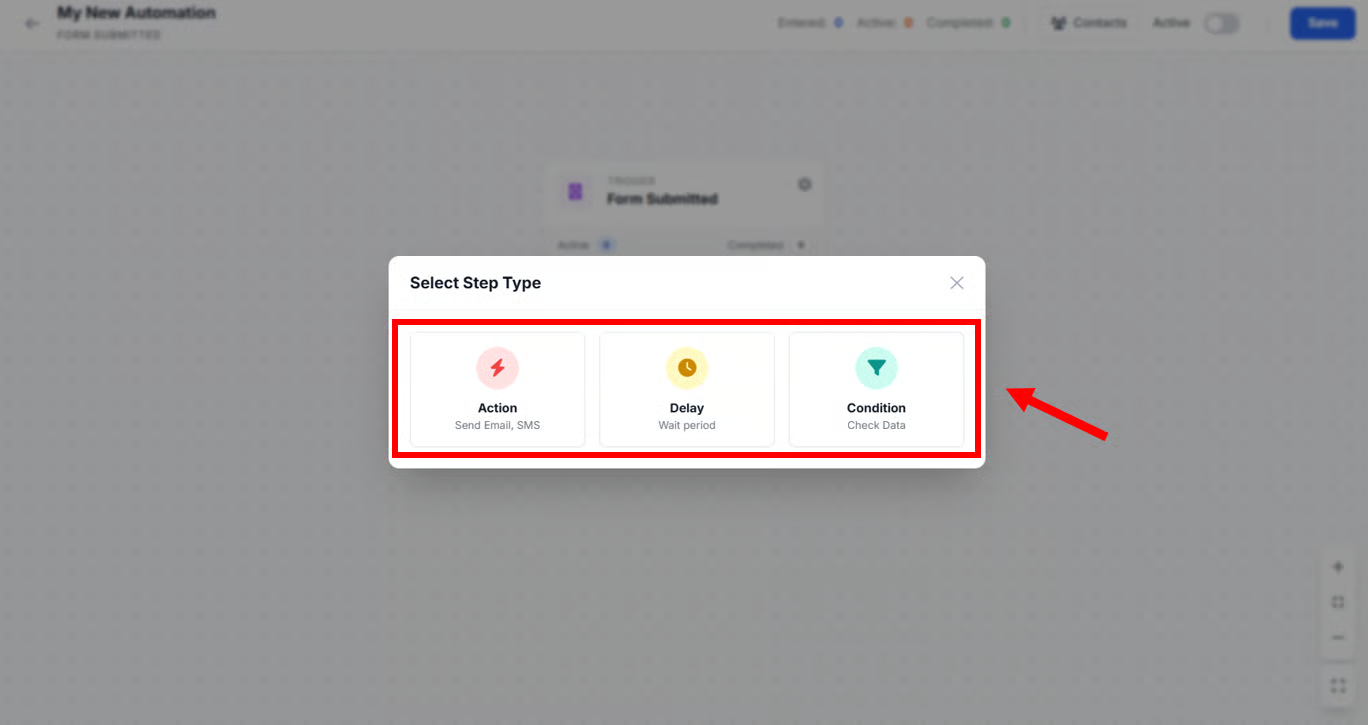
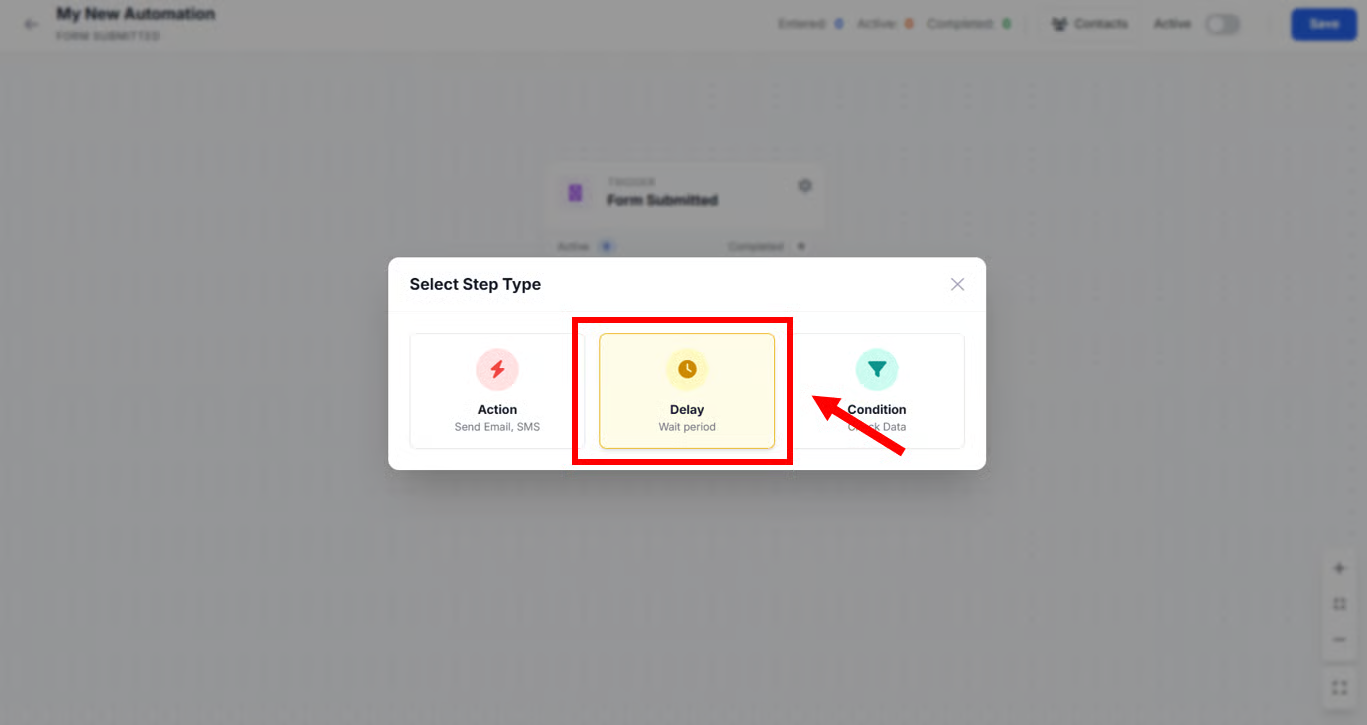
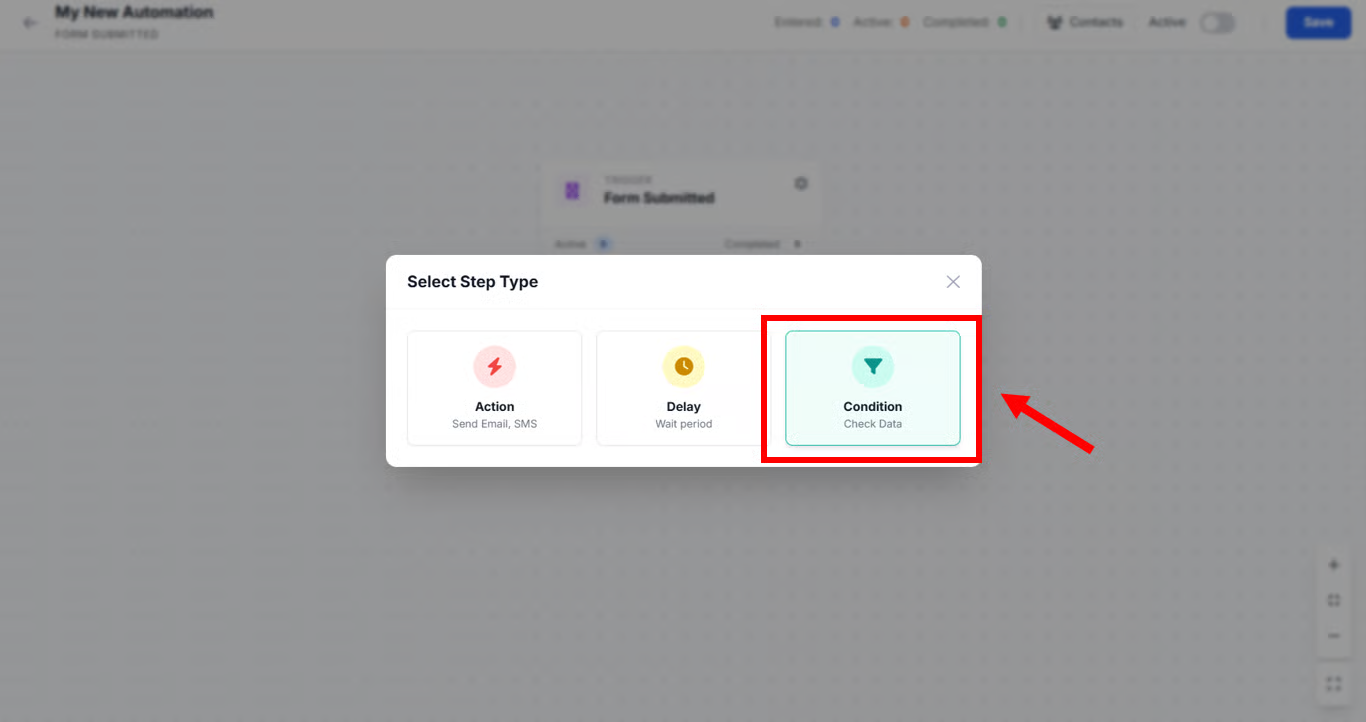
4. You can select the step type (**Action/Delay/Condition**).
5. You can setup for the step type.
i. Action
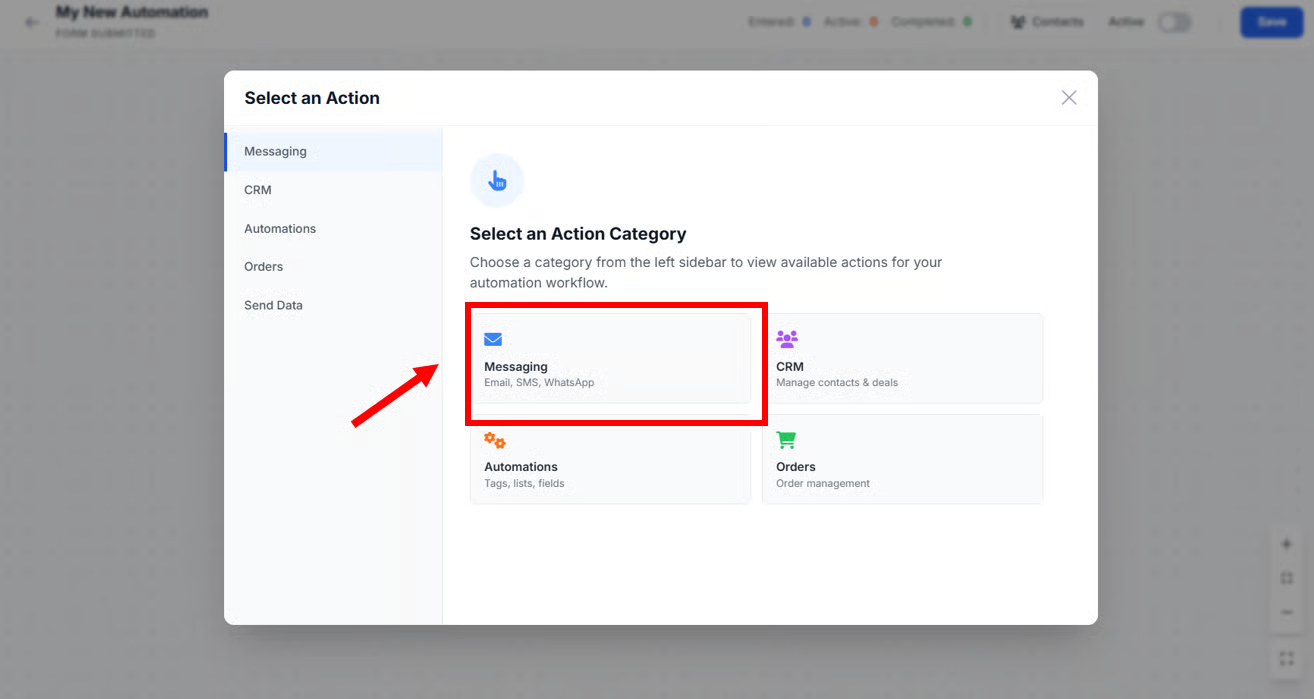
* Click **Messaging.**
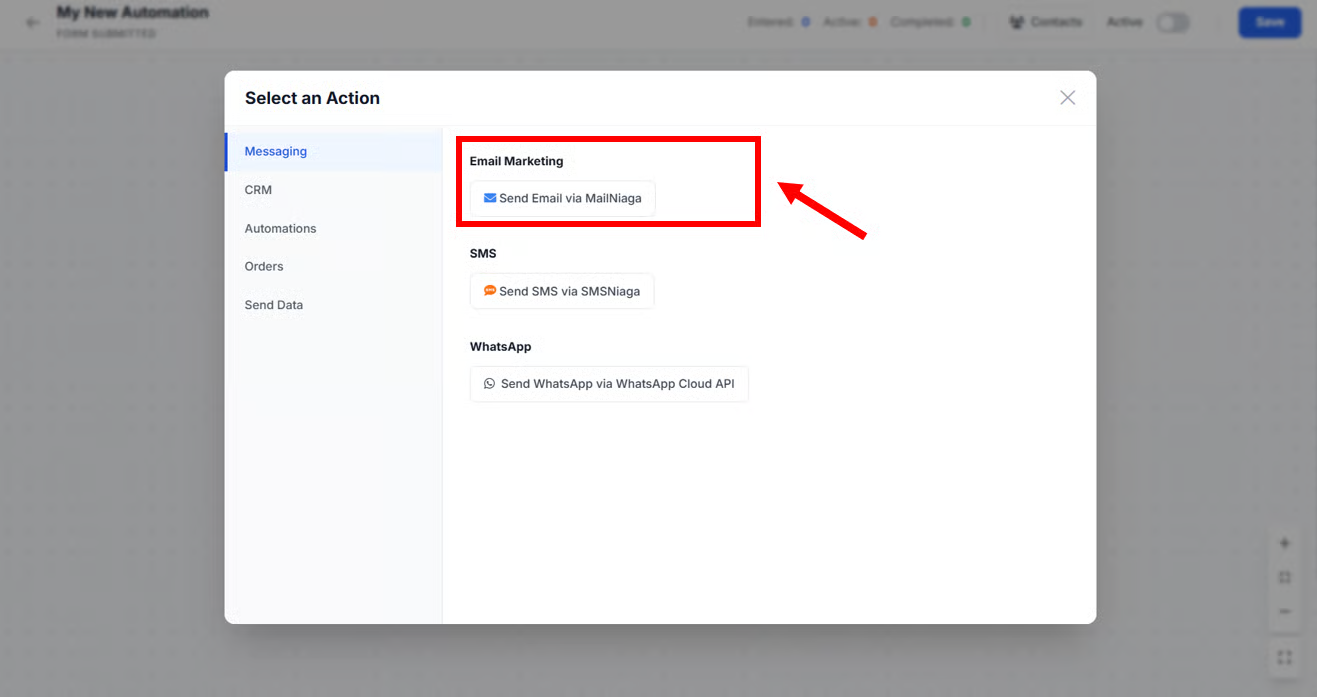
a. Email
* Click **Send Email via MailNiaga**
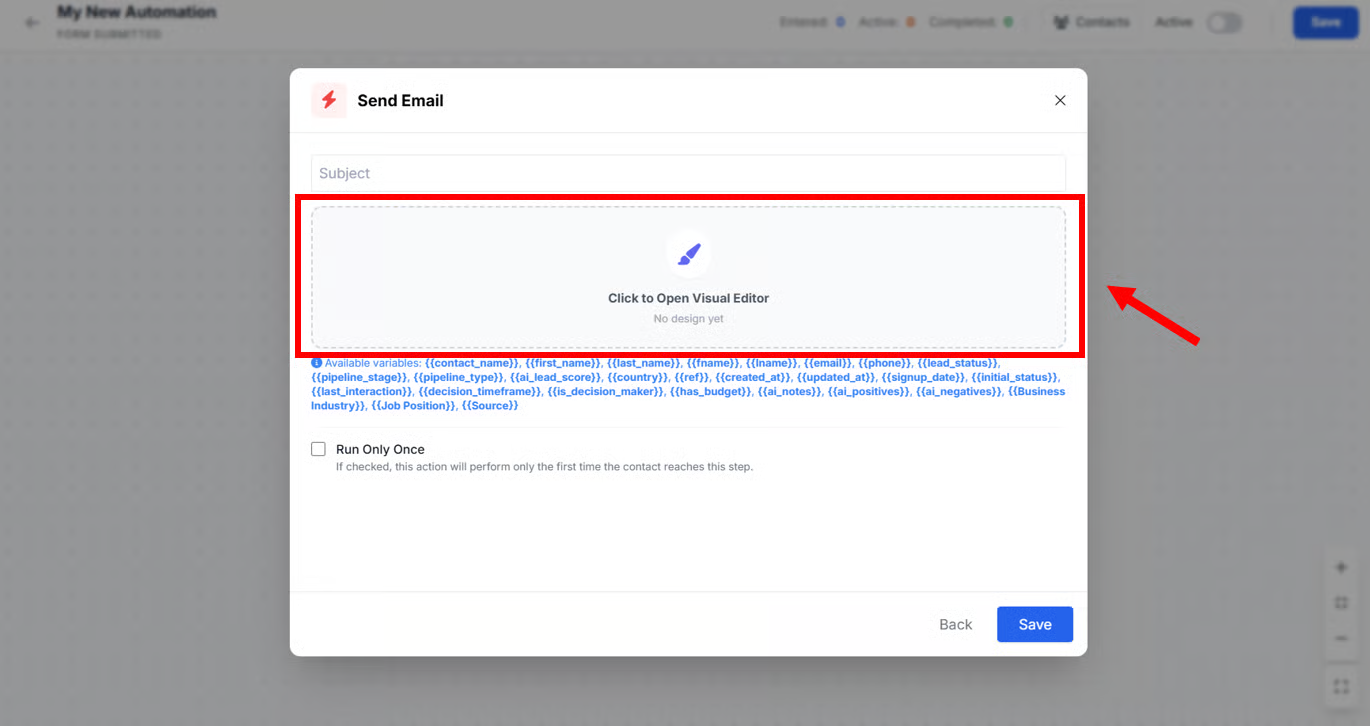
Click : **Click to Open Visual Editor** to add content for Email Message Automation.
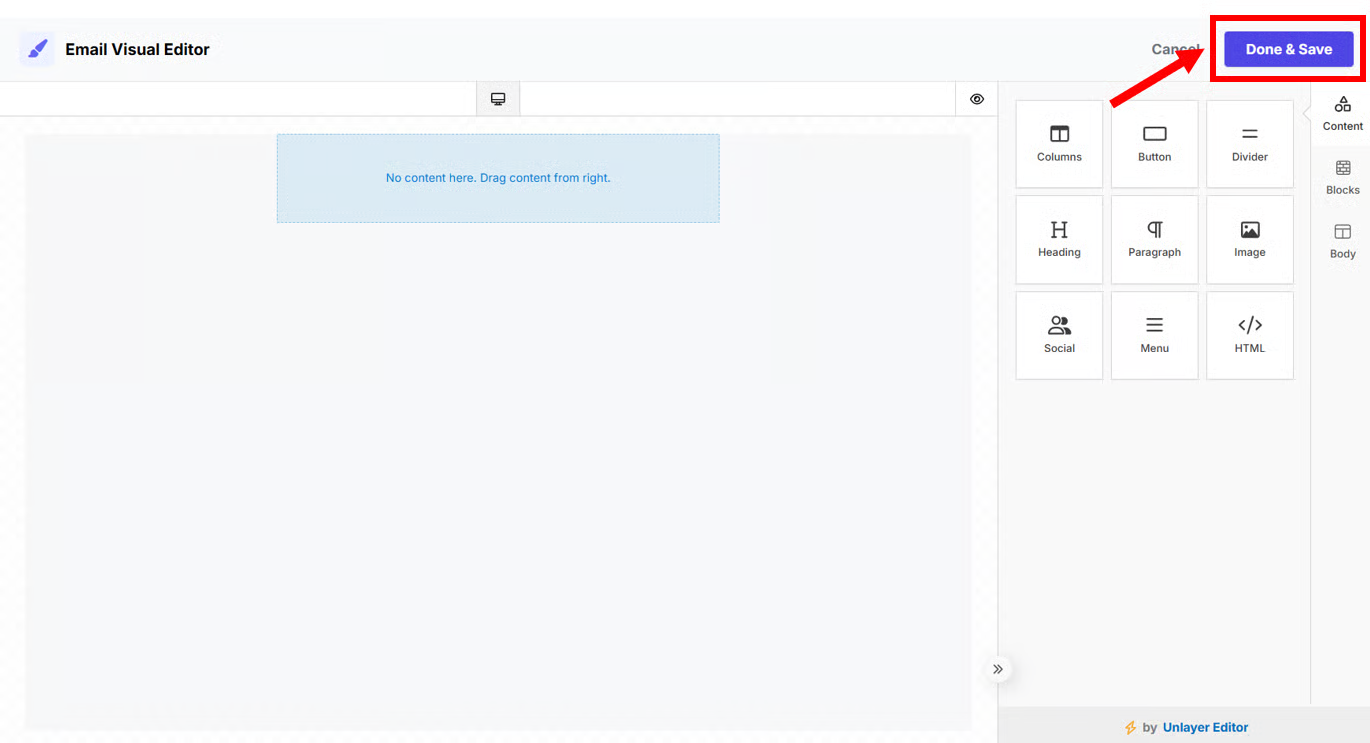
Adding & editing content available here. Click **Done & Save** to save the content.
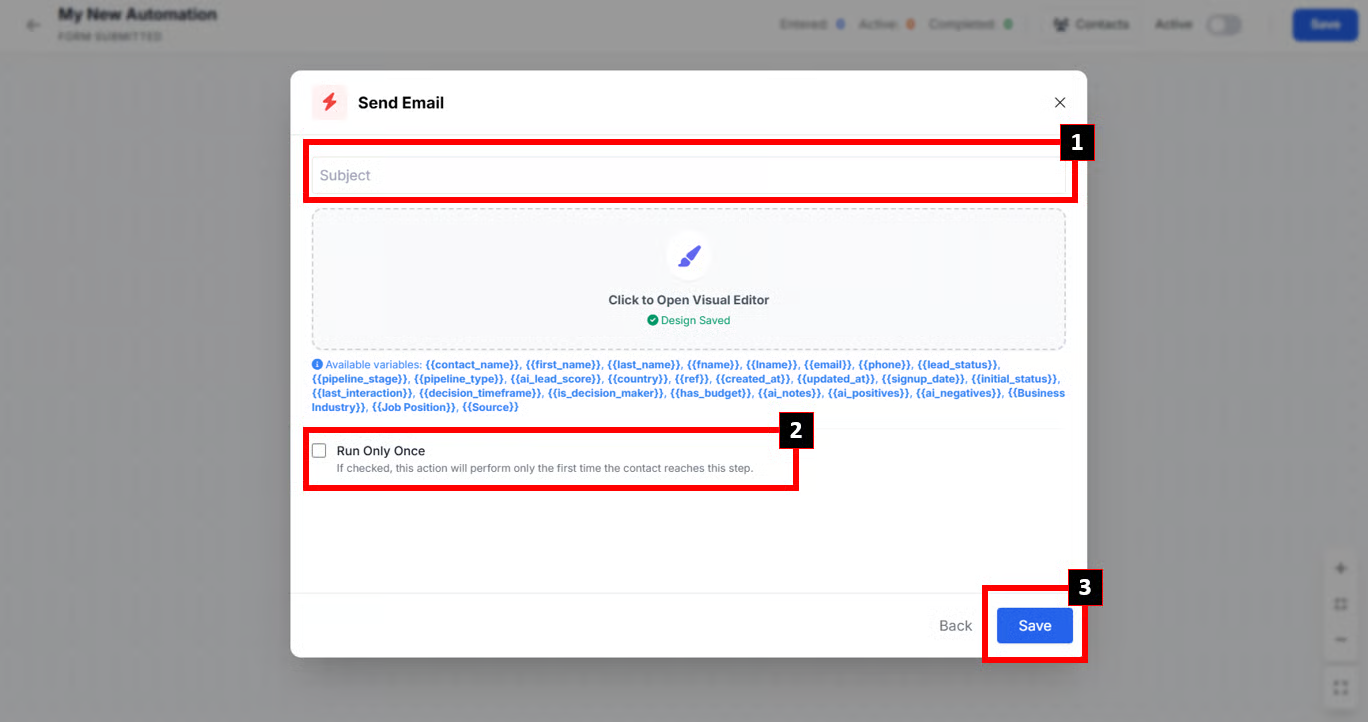
1. Enter **Subject** for the email message automation.
2. If you tick here, the automation will only **run once** to the leads who fill in the automation form.
3. Click **Save** to save the automation setup.
SMS
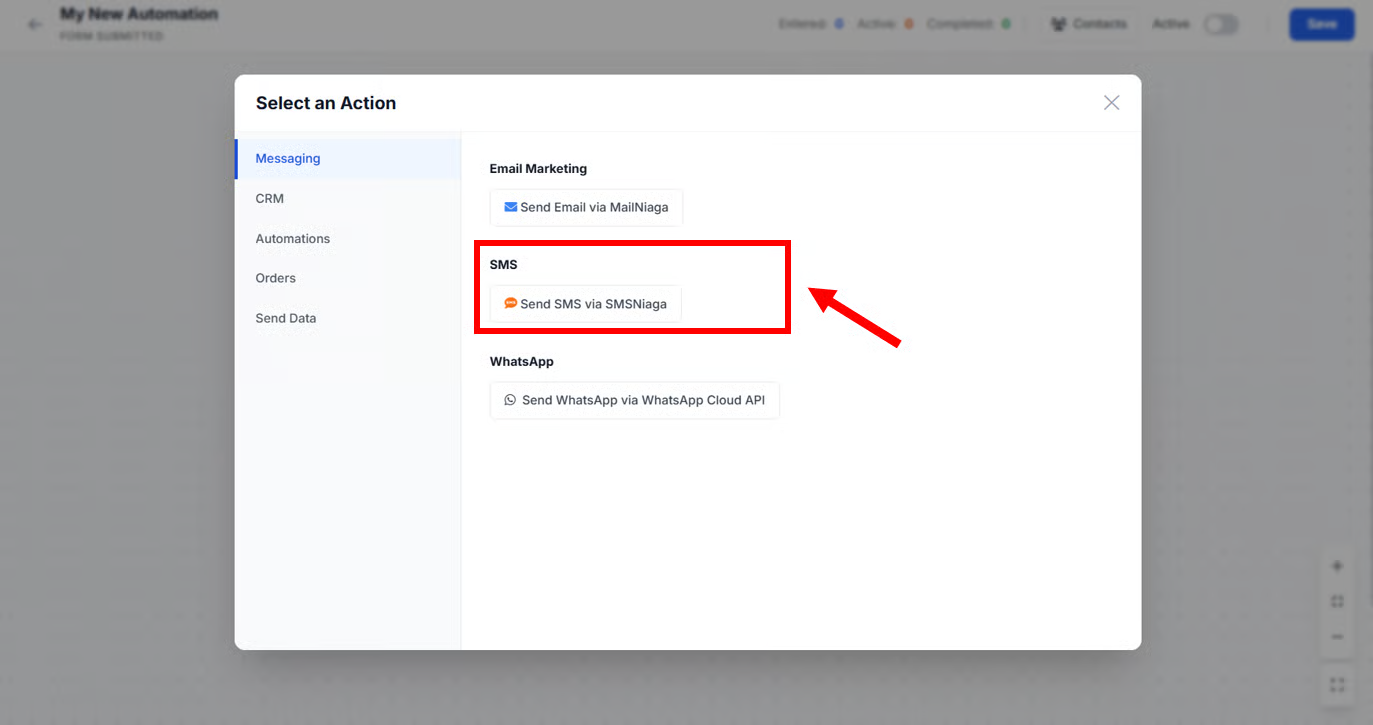
* Click **Send SMS via SMSNiaga**
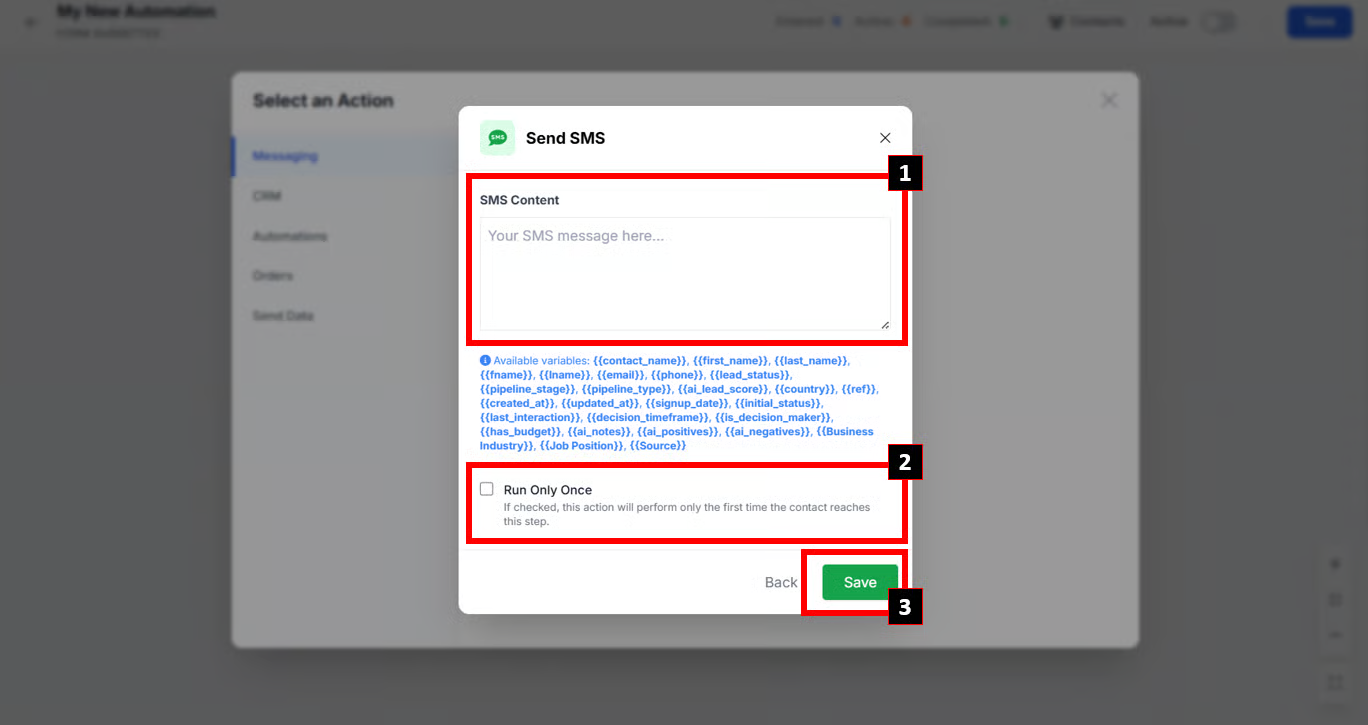
1. Enter **SMS content** in the area provided.
2. If you tick here, the automation will only **run once** to the leads who fill in the automation form.
3. Click **Save** to save the automation setup.
c. WhatsApp
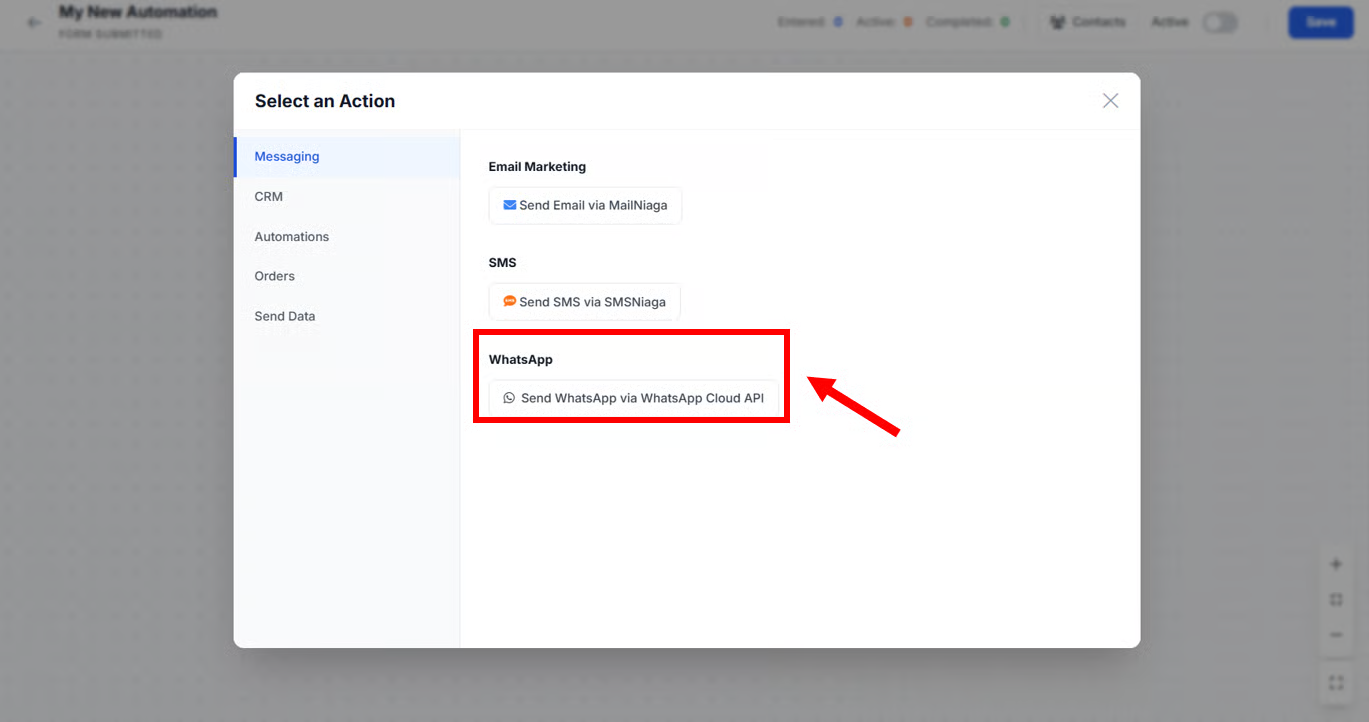
* Click Send WhatsApp via WhatsApp Cloud API
* CRM (COMING SOON)
* Automations (COMING SOON)
* Orders (COMING SOON)
ii. Delay
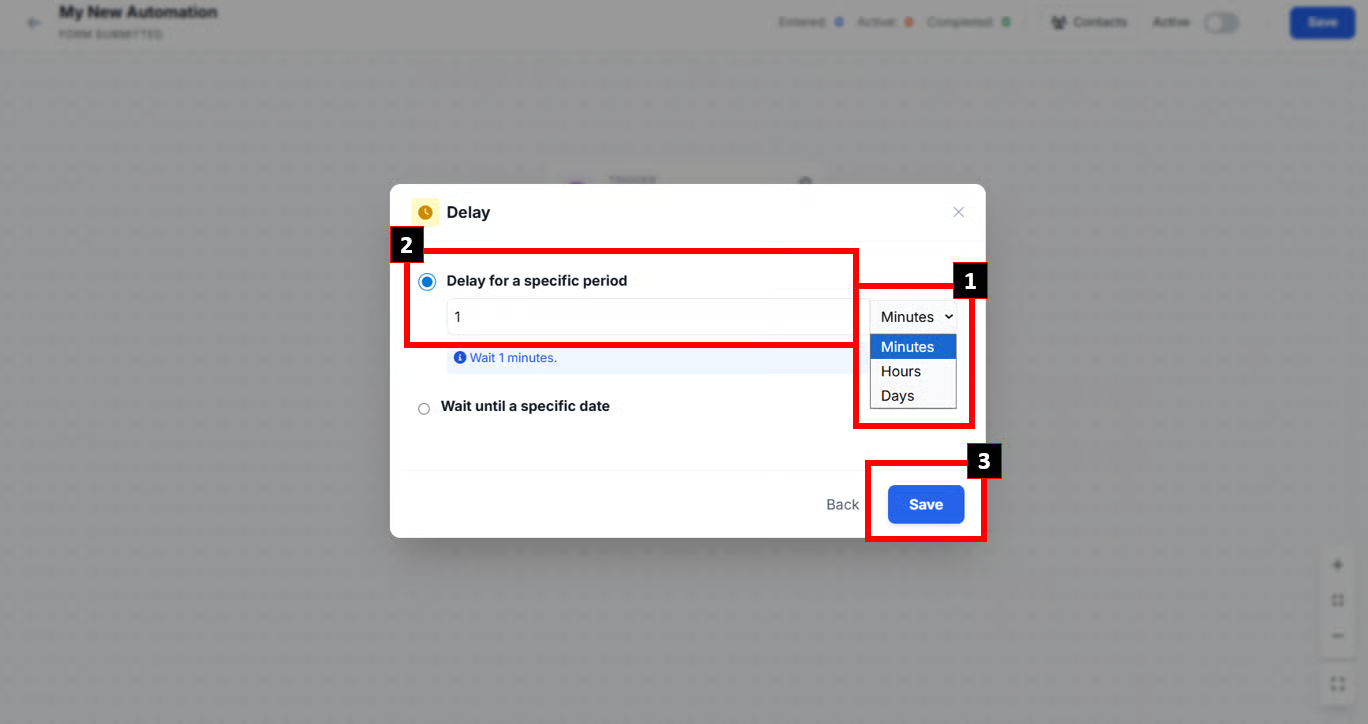
#### **Delay by Time**
1. Set the delay timing (**minutes/hours/days**)
2. Set the specific period.
3. Click **Save** to save the setup.
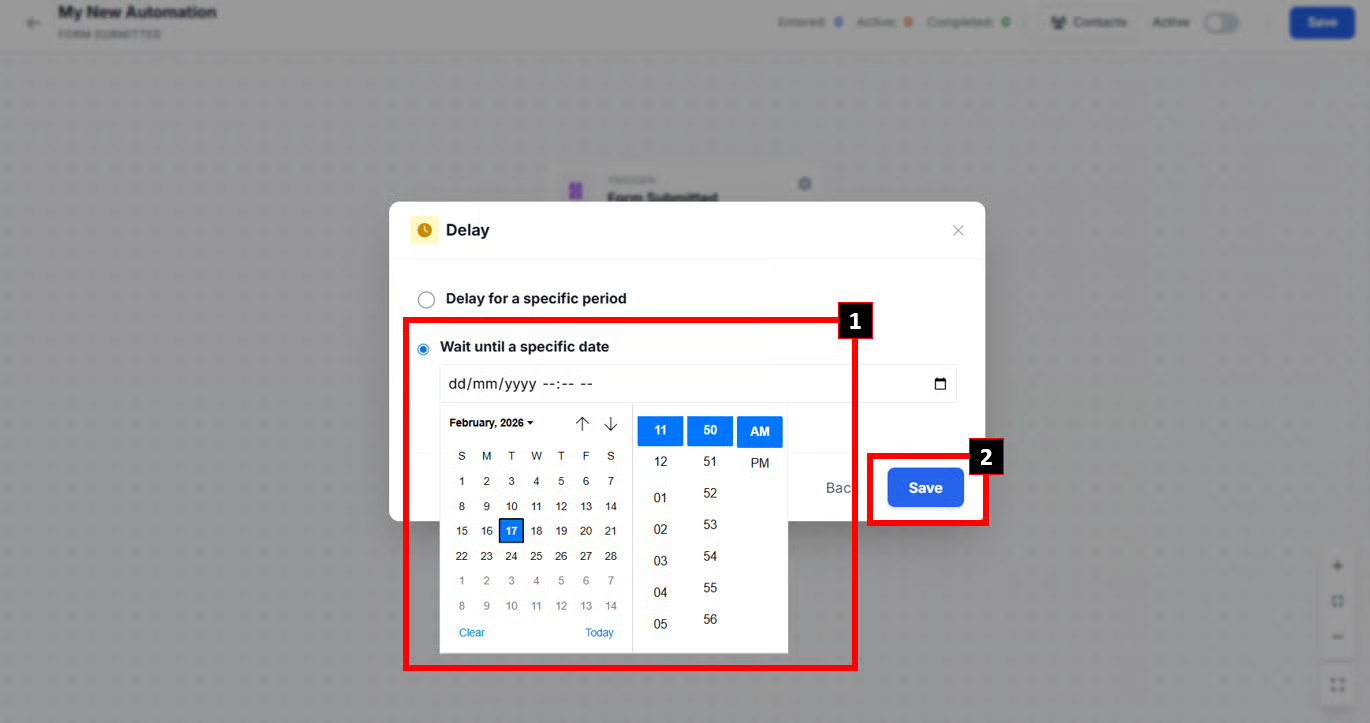
#### Delay by Date
1. Set the **date**.
2. Click **Save** to save the setup.
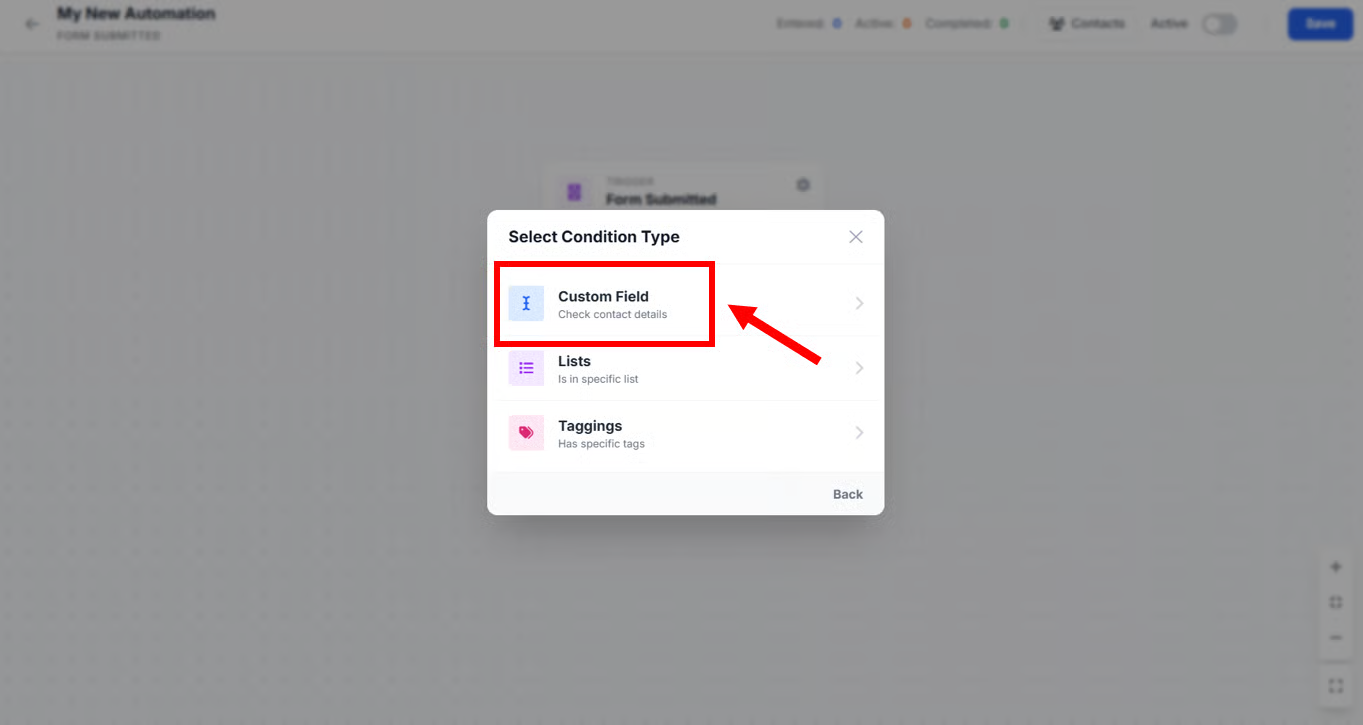
iii. Condition
1. Click **Custom Field.**
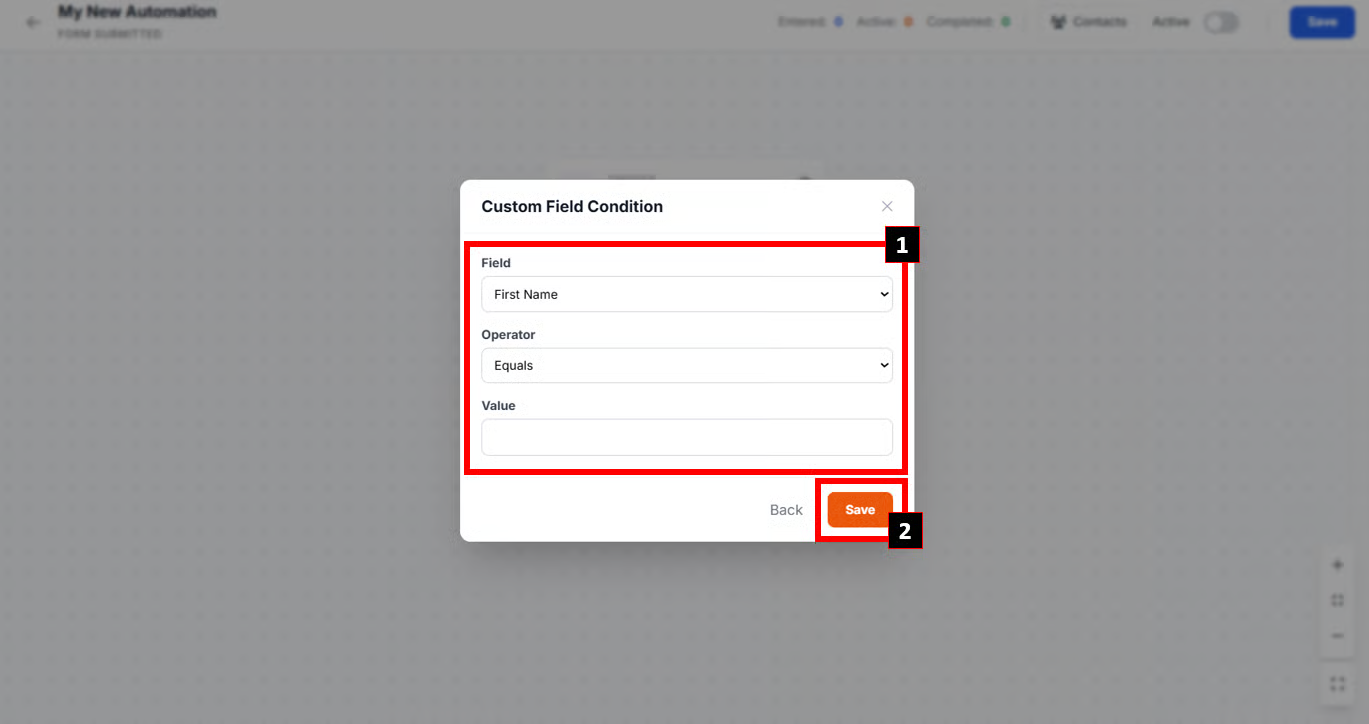
2. Select the Field & Operator. Then, enter the value to be the condition.
3. Click **Save**.
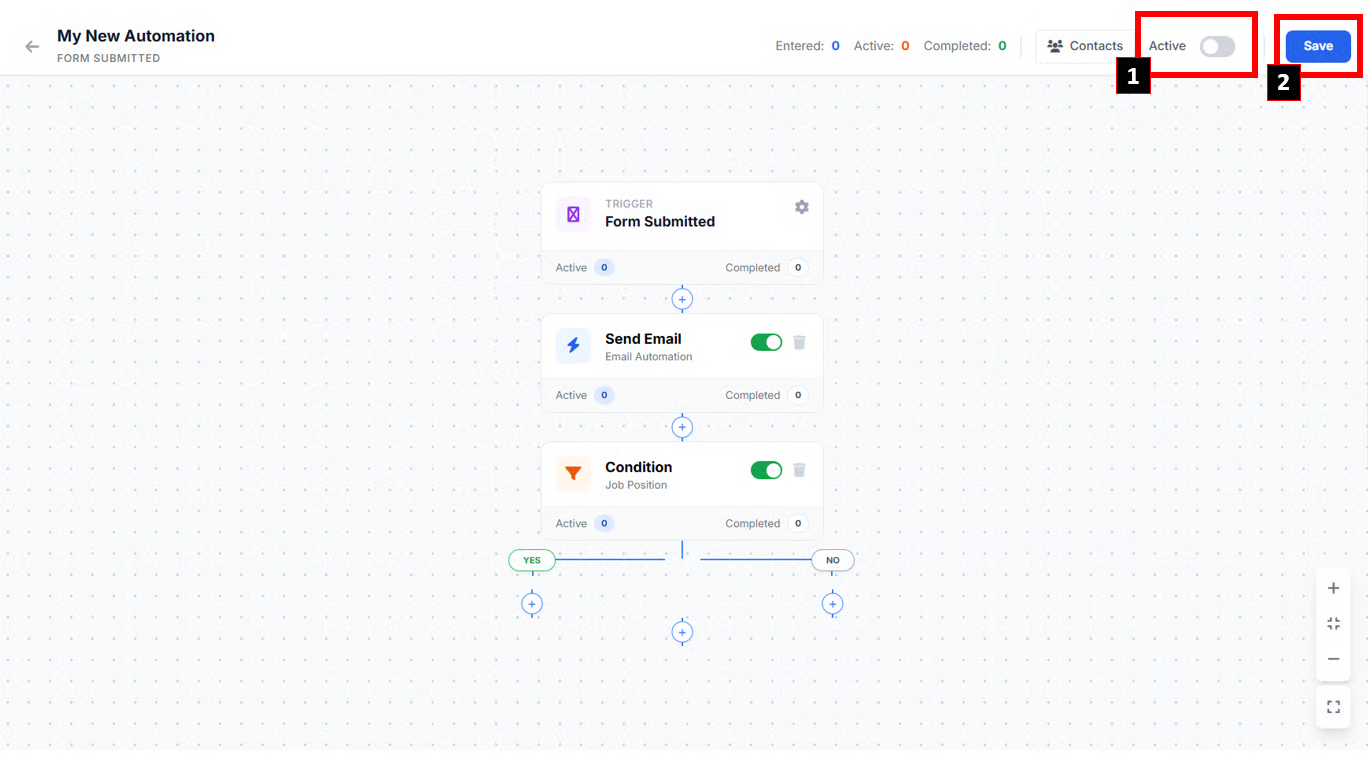
4. After done setup all the Steps, toggle on the **Active** button and click **Save** button.
{% hint style="danger" %}
Make sure to **Save** the automation everytime you edit anything!
{% endhint %}